
How to schedule Instagram posts from Claude or ChatGPT
Connect SuperProfile's MCP server to Claude, ChatGPT or another assistant that supports MCP, and you can ask it to draft and schedule Instagram posts, carousels, Reels and Stories in plain words. You choose the permissions when you connect, and an assistant without the publish permission can prepare drafts but cannot schedule anything. Connecting an assistant is free; scheduling is on SuperProfile's paid plans.
What does it mean to schedule Instagram posts from an AI assistant?
The assistant does the work you would do on the Schedule screen: it creates the post, attaches your media, sets the time and, once you approve, queues it to publish. It reaches SuperProfile through an MCP server (Model Context Protocol, the open standard assistants use to work with software). Whatever it creates appears in the same Schedule calendar and drafts as in your dashboard, so you can edit, move or cancel it there.
SuperProfile builds and runs its own remote MCP server; no Zapier or other third party is involved. Posts are published automatically through Meta's official Instagram content publishing API, with your account connected by Instagram login.
See also the Instagram scheduling tools, the wider MCP server and the Instagram scheduler itself.
What can I schedule from Claude or ChatGPT?
You can schedule feed photos, carousels of 2 to 10 photos or videos, Reels (3 seconds to 15 minutes, with an optional cover and share-to-feed) and Stories. For each post the assistant can set:
- Captions up to 2,200 characters, with a hashtag counter: SuperProfile checks Meta's publishing limits of 30 hashtags and 20 @mentions
- A first comment posted right after the post goes live (not on Stories)
- Saved captions you can reuse
- Up to 10 caption options on one post: you choose which one is posted
- People tags and alt text on images
- Up to 3 collaborators (not on Stories)
For a Reel, the assistant can also make it a trial reel: an AI assistant can schedule a trial reel through the MCP server by setting reel.trial to MANUAL or SS_PERFORMANCE on prepare_scheduled_post (Reels only). Ask, for example: “Schedule this Reel for Sunday at 6 pm as a trial reel, and share it with my followers if it does well.”
Timing: from 2 minutes ahead (15 minutes for posts with video) up to 90 days ahead, in the time zone you choose. The same tools also work for Facebook Page posts, with a Facebook Page connected in SuperProfile Auto-DM through Messenger; the same Schedule calendar holds your Instagram and Facebook Page posts. Page posts have no first comment yet.
How do I schedule Instagram posts from Claude, step by step?
- Create a SuperProfile account and open Schedule. Scheduling needs a paid plan, covered below.
- In Schedule, connect your Instagram account with Instagram login. You need an Instagram professional account (creator or business), because Meta's publishing API works only with professional accounts.
- In Claude, open SuperProfile in the connector directory and choose Connect.
- Sign in to SuperProfile in the window that opens. The permission screen asks what this assistant may do on your behalf. Instagram Schedule is its own group, and only the permissions you tick are granted. For a cautious first run, tick view and draft only and schedule the draft yourself; add publish when you want the assistant to schedule too.
- Ask for what you want, for example: Draft a Reel for Friday at 7 pm using my saved product launch caption.
- Add your media. The assistant gets an upload link for each photo or video, and SuperProfile checks the file before adding it to the post.
- Review the draft. With publish granted, ask the assistant to schedule it; without it, open Schedule and schedule the draft yourself. If the assistant says it needs the publish permission, reconnect SuperProfile and approve it. When you reconnect, permissions SuperProfile added after your first connection appear unticked under New permissions available; nothing new is granted unless you tick it.
Requests that work well:
| Ask | What the assistant does |
|---|---|
| Schedule this Reel for Friday at 7 pm with my usual caption. | Drafts the Reel, takes the upload, schedules it when you confirm |
| Move all of next week's posts one day later. | Reschedules them in one request (up to 50) |
| How did yesterday's carousel do? | Reads reach, likes, comments, saves, shares and views |
How do I schedule Instagram posts from ChatGPT?
The short version: in ChatGPT, add SuperProfile as a custom app (developer mode, on plans that support it) with the server URL https://mcp.superprofile.bio/mcp and OAuth sign-in.
- In ChatGPT settings, turn on developer mode (on plans that support custom apps).
- Create a new app and enter
https://mcp.superprofile.bio/mcpas the MCP server URL, with OAuth as the authentication. - Sign in to SuperProfile in the window that opens and approve the permissions you want.
- In a chat, pick the SuperProfile app and use the same requests as above.
Can I use Cursor, Claude Code or another assistant that supports MCP?
Yes, any assistant that supports remote MCP can use the same server and tools. The server URL is https://mcp.superprofile.bio/mcp, and sign-in is OAuth. SuperProfile has setup pages for Claude Code, OpenAI Codex and Cursor, and the MCP overview lists more.
What can the assistant do, and what can it not do?
| Task | Can the assistant do it? | What to know |
|---|---|---|
| Create, edit or cancel a draft; move a scheduled post back to drafts | Yes | Needs the draft permission. A draft does not publish until it is scheduled. |
| Add photos and videos | Yes, through an upload link | File content never goes into the chat. Images can be JPEG, PNG or WebP and videos MP4 or MOV; iPhone HEIC photos are refused. If your assistant cannot upload files, it gives you a link to add the media yourself in your browser. |
| Caption, first comment, alt text, people tags, collaborators | Yes, on Instagram | A first comment is not available on Stories, and neither are collaborators. |
| Schedule, move or retry a post | Yes, with the publish permission | Without publish, it cannot schedule or edit a scheduled post. |
| Read how a published post did | Yes | Metrics come live from Instagram. A number Instagram does not return shows as unavailable, never as zero. |
| Add an Auto-DM to a scheduled post | Yes, with extra permissions | See the next section. |
| Reconnect Instagram or grant Meta permissions | No | You do that yourself from Schedule; an assistant cannot grant Meta permissions. |
Can the assistant add an Auto-DM to a scheduled post?
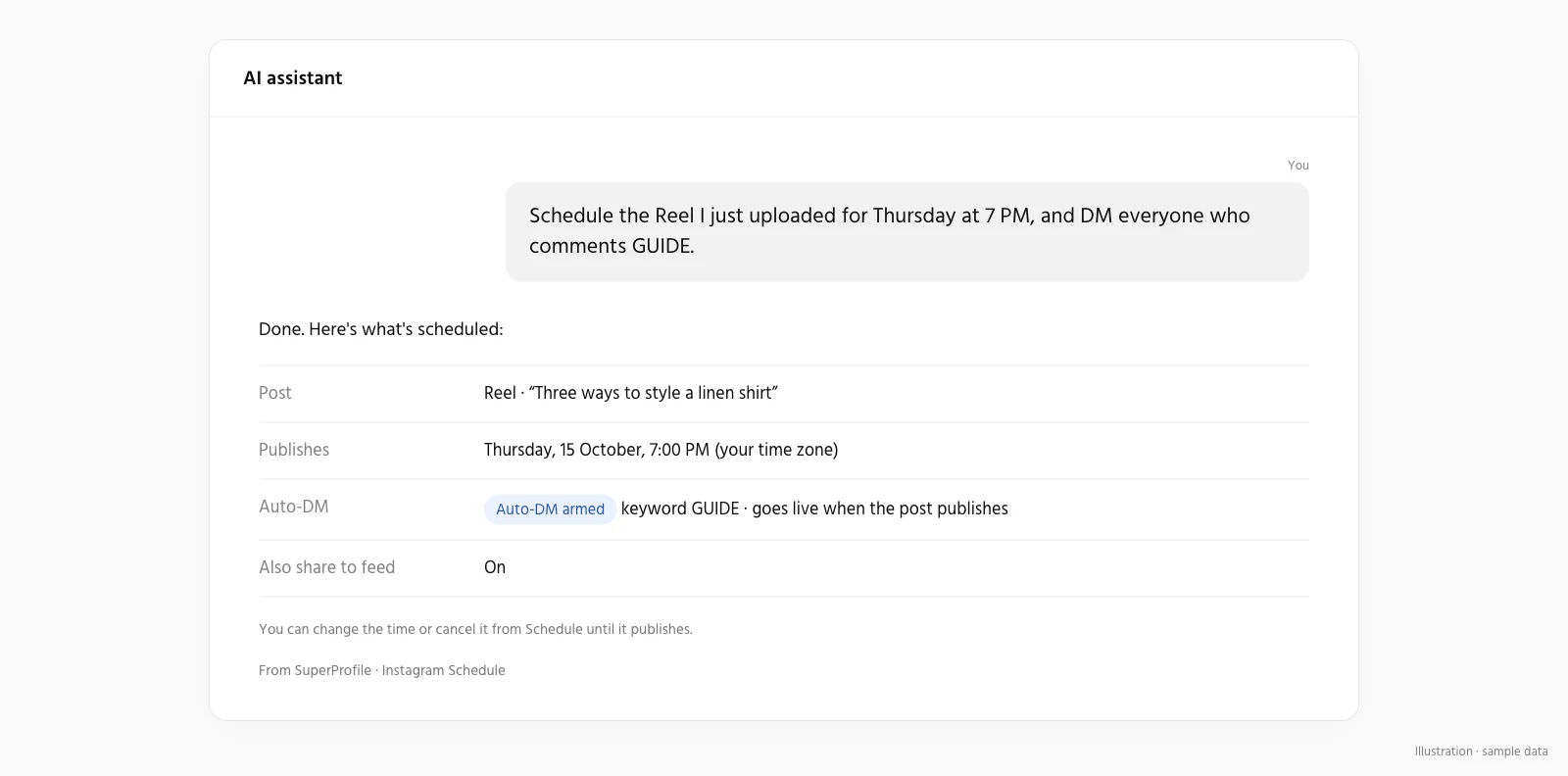
Yes. With the attach_auto_dm_to_scheduled_post tool, the assistant can attach an Auto-DM to a scheduled Instagram photo, carousel, Reel or Story until 10 minutes before it goes live (on a photo, carousel or Reel it answers comments; on a Story it answers private Story replies, not Story comments); the automation starts when the post publishes, and your Auto-DM plan limits apply. Because an Auto-DM sends messages once the post is live, the connection also needs the Auto-DM write and activate permissions.
- The trigger is always comments on that post. You give the keywords, the DM text, up to 3 buttons and up to 3 public comment replies.
- To change one, the assistant removes it and attaches a new one.
- Media messages and follow-ups are set from the Schedule page, not by the assistant.
Meta's messaging windows and rules apply to all messages, so people who restrict messages may not get the DM. Dashboard setup is in how to schedule a post with Auto-DM, and the product is on the Auto-DM page.
Does the assistant publish without my approval?
It cannot go past what you granted. Three layers apply:
- Drafts first. A new post starts as a draft the assistant shows you first, and changing a post that is already scheduled needs the scheduling permission.
- A separate publish permission. Here, draft/edit, publication, deletion, customer information and email activation are separate permissions. Scheduling a post, or editing one that is already scheduled, needs publish. Without it the assistant can only prepare.
- An approval instruction. The scheduling tool tells the assistant to use it only after you approve the content and the time. That instruction is addressed to the assistant, so treat the permission as the hard control.
Until the post time you can cancel it in Schedule or ask the assistant to. A post that cannot be published within 2 hours of its time is marked failed instead of going out late, and you get an email.
Which plan do I need?
Connecting an assistant is available to every SuperProfile creator. Scheduling itself is available on all SuperProfile paid plans, from Schedule in the dashboard; free creators see an upgrade prompt. On a free plan the assistant can still view and cancel posts. See the pricing page for plans.
Is it safe? Official API, permissions and how to revoke access
Posts go out through Meta's official content publishing API, and you sign in to SuperProfile with OAuth, so your password is never shared with the assistant. The permissions for scheduling are three separate ones:
| Permission | What it allows |
|---|---|
| View | View scheduled Instagram posts and which accounts can publish them |
| Draft and edit | Create and edit scheduled-post drafts, upload their media, unschedule and cancel posts |
| Publish | Schedule posts that will publish to your Instagram account at the chosen time |
- An assistant can only work on the Instagram accounts you authorised for that connection.
- You can manage or revoke access any time in Connected agents in your SuperProfile dashboard.
Frequently asked questions
Can Claude schedule Instagram posts for me?
Yes. Connect SuperProfile from Claude's connector directory, approve the Instagram Schedule permissions, and Claude can draft and schedule posts, carousels, Reels and Stories in your SuperProfile Schedule. Scheduling needs a paid plan; see the pricing page.
Does the assistant post on its own without asking me?
Only if you granted the publish permission, and the scheduling tool tells the assistant to act only after you approve the content and time. With draft-only access it can prepare posts but cannot schedule them.
Can I upload my Reel or photos from the chat?
The assistant gets an upload link for each file, and file content never goes into the chat. If your assistant cannot upload files, it gives you a link to add the media yourself in your browser.
Can the assistant schedule Stories, add a first comment or write alt text?
Yes to Stories, and to a first comment and alt text on Instagram posts. First comments and collaborators are not available on Stories, and Facebook Page posts have no first comment yet.
Can it set up the comment-to-DM automation for the post?
Yes, on a scheduled photo, carousel, Reel or Story (on a Story it answers private Story replies that match your keyword), up to 10 minutes before it goes live, if the connection also has the Auto-DM permissions. See the Auto-DM scheduling guide.
More guides
Last updated .