
Connect SuperProfile to Claude
SuperProfile is listed in Claude's connector directory at claude.ai/directory/superprofile. Once connected, Claude can create and edit products, courses, webinars, 1:1 sessions, paid Telegram communities and Instagram or Messenger Auto-DM automations, and read your sales; new products, automations and posts start as drafts you can review first.
How do I connect SuperProfile to Claude?
- Open the SuperProfile listing in Claude's connector directory and choose Connect.
- Sign in to SuperProfile in the window that opens.
- Choose the permissions you want to give, for example creating and editing only, or also publishing, and approve.
- Ask Claude for what you want. New products and automations start as drafts it shows you first; edits to something already live apply when saved.
- Change or revoke access any time from Connected agents in your SuperProfile dashboard.
Key facts
- Server URL (for manual setup)
https://mcp. superprofile. bio/ mcp - Permissions
- You choose them when you connect; draft/edit, publication, deletion, customer information and email activation are separate permissions
- Covers
- 1:1 sessions and bookings, webinars, courses, locked content, lead magnets, digital products, payment pages, paid Telegram communities, and Instagram or Facebook Messenger Auto-DM automations, and Instagram post scheduling
What can I ask Claude to do?
| Example request | Area |
|---|---|
| “Create a draft payment page for my guide, upload this PDF, price it at ₹499, and show it to me before publishing.” | Digital products |
| “Create a draft automation for my latest Reel that sends my guide when someone comments INFO. Show me the draft first.” | Instagram Auto-DM |
| “Create a 45-minute portfolio review call for ₹999 on Google Meet using my default availability.” | 1:1 sessions |
| “Set up a paid Telegram community for my group at ₹499 a month and show it to me before publishing.” | Paid Telegram communities |
| “How did my courses sell last month, and which one had the most buyers?” | Sales and analytics |
| “Did rahul@example.com buy my course, and does their order have any UTM tags?” | Sales and analytics |
| “Duplicate my webinar for next Saturday at 7 pm and keep the same price.” | Webinars and events |
| “Schedule this Reel for Friday at 7 pm with my usual caption, and send my guide to people who comment GUIDE.” | Instagram scheduling |
| “Post this photo album to my Facebook Page on Sunday morning and send the price list in Messenger to people who comment PRICE.” | Facebook Page scheduling |
| “Schedule this PDF as a LinkedIn post for Tuesday at 9 am, with a short intro in my voice.” | LinkedIn scheduling |
| “Hide spam and abusive comments on my Reels automatically.” | Comment moderation |
| “Which brand collaboration requests this week match my rates and niche?” | Brand Collab |
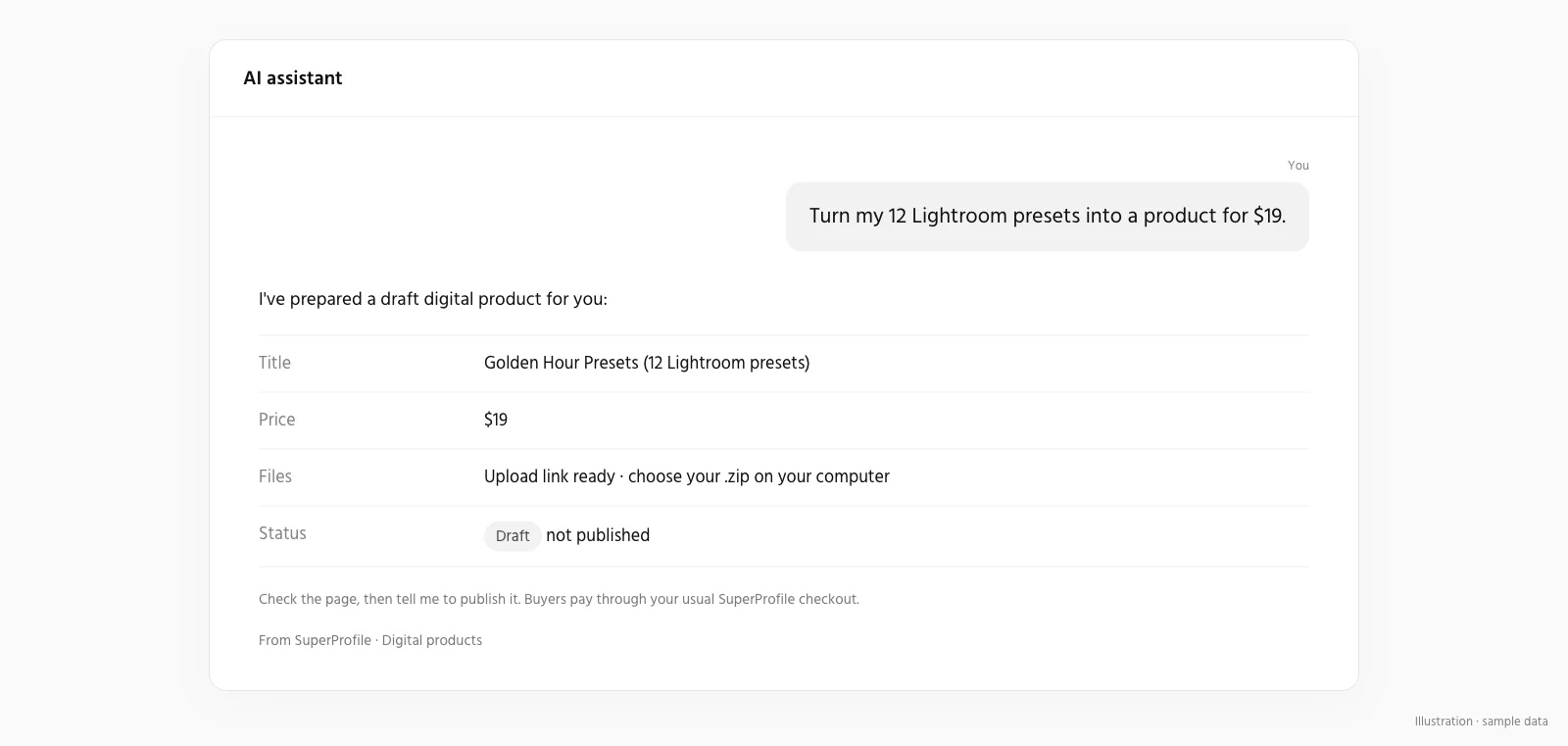
Can an assistant change my store without asking?
Only within the permissions you grant. New products and automations start as drafts you can review first, but saving an edit to something already live applies as soon as it is saved: a live product edit needs the publish permission, while an active Auto-DM automation can be changed with the "Save drafts, edit and pause automations" permission alone. Grant that Auto-DM permission carefully: it also lets an assistant change or pause an automation that is already on. Draft/edit, publication, deletion, customer information and email activation are separate permissions, and you choose them when you connect. Buyer checkout, access and downloads stay in the existing SuperProfile flows; nothing is sold inside the chat. You can manage or revoke access any time in Connected agents in your SuperProfile dashboard.
Frequently asked questions
Does SuperProfile have its own MCP server?
Yes. SuperProfile builds and runs its own remote MCP server; no Zapier or other third party is involved. In Claude, add SuperProfile from the connector directory; in other assistants, add https:// as a remote MCP server.
Do I need an Instagram account?
No. Product-only access needs no Instagram account or Messenger Page; connect Instagram or a Facebook Page only if you want the assistant to manage Auto-DM.
Can the assistant see my buyers' contact details?
Only if you grant the separate customer-information permission.
If Claude says it cannot make a change, what do I do?
Reconnect SuperProfile in Claude and approve the missing permission. Refreshing a connection does not add permissions; some clients need you to remove and add the connector again.
SuperProfile MCP server pages
- Overview: what the SuperProfile MCP server is
- Connect SuperProfile to ChatGPT
- Connect SuperProfile to Claude Code
- Connect SuperProfile to OpenAI Codex
- Connect SuperProfile to Cursor
- Connect SuperProfile to Gemini
- Connect SuperProfile to Perplexity
- Connect SuperProfile to Windsurf
- Connect SuperProfile to VS Code (GitHub Copilot)
- Connect SuperProfile to Notion
- Connect SuperProfile to Muse by Meta
- Sell digital products with an AI assistant
- Automate Instagram and Messenger DMs with an AI assistant
- Schedule Instagram posts with an AI assistant
- All SuperProfile MCP tools, by product
- Developer reference: endpoint, OAuth, permissions, errors
- Frequently asked questions
Last updated .