
Instagram content calendar template
An Instagram content calendar needs five columns: date, format, content pillar, caption, and status. That plans your month. The part most templates skip is turning each row into a real scheduled post, which is what the second half of this page covers.
The template: 5 columns
Use a spreadsheet, Notion, or any tool you already have. One row per post, five columns:
| Column | What goes in it |
|---|---|
| Date | The day you want it live. Leave the exact time for the scheduling step below. |
| Format | Feed photo, carousel, Reel, or Story. |
| Pillar | The category this post serves: educational, behind-the-scenes, promotional, social proof, or community (polls, Q&A). |
| Caption | The drafted text, hook and call-to-action. Keep more than one option if you are unsure which hook lands better. |
| Status | Idea, In production, Ready, Scheduled, or Published. |
A simple weekly mix across those pillars (not every post selling something) is what most creators mean by "consistent content": for example educational on Monday, a Reel on Wednesday, social proof on Friday, and a community Story on the weekend.
Here is one filled-in week, so you can see what a real row looks like before you copy the format:
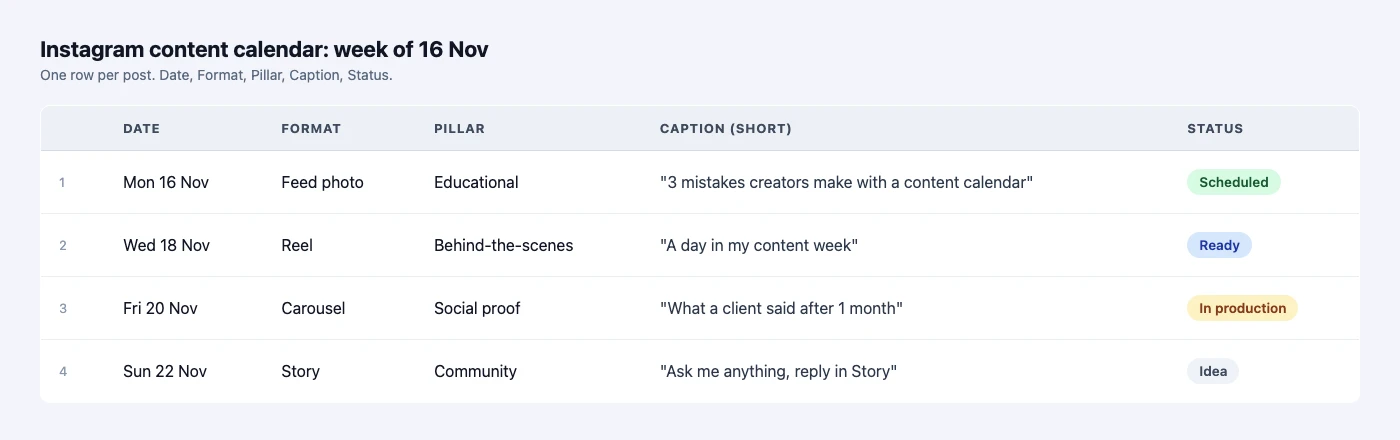
| Date | Format | Pillar | Caption (short) | Status |
|---|---|---|---|---|
| Mon 16 Nov | Feed photo | Educational | "3 mistakes creators make with a content calendar" | Scheduled |
| Wed 18 Nov | Reel | Behind-the-scenes | "A day in my content week" | Ready |
| Fri 20 Nov | Carousel | Social proof | "What a client said after 1 month" | In production |
| Sun 22 Nov | Story | Community | "Ask me anything, reply in Story" | Idea |
Take the first row: once its caption is final, you move its Status to Scheduled by actually scheduling it (next section) — Monday 16 Nov becomes a real Schedule entry with a time, not just a cell in a spreadsheet.
Turning the template into a scheduled post
A calendar only plans; it does not publish. SuperProfile Schedule turns a filled-in row into a real post: feed photos, carousels of 2 to 10 photos or videos, Reels (3 seconds to 15 minutes, with an optional cover and share-to-feed) and Stories, published automatically through Meta's official Instagram content publishing API, with your account connected by Instagram login. You can schedule from 2 minutes ahead (15 minutes for posts with video) up to 90 days ahead, in the time zone you choose, so a full month from your template can go in at one sitting.
To turn one row of the template into a scheduled post:
- In Schedule, click "+ New post" and pick the post type from the row (photo, carousel, Reel or Story).
- Upload the media you planned for that slot.
- Paste the caption from the row, and the first comment if you planned one (Stories take no caption or first comment).
- Set the date, time and time zone from the row.
- Click "Schedule", or "Save draft" if the post still needs work. It appears on the calendar on that day.
Captions carry over directly:
- Captions up to 2,200 characters, with a hashtag counter: SuperProfile checks Meta's publishing limits of 30 hashtags and 20 @mentions
- A first comment posted right after the post goes live (not on Stories)
- Saved captions you can reuse
- Up to 10 caption options on one post: you choose which one is posted
- People tags and alt text on images
- Up to 3 collaborators (not on Stories)
If your template lists more than one caption idea for a post, you can keep them all as caption options on that post (not on Stories) and pick the one that gets posted; the others are never posted.
Managing the calendar after you've scheduled it
Plans change.
- A calendar where you drag a post to another day and it keeps its time
- Edit a scheduled post, move it back to drafts, cancel it or duplicate it
- Retry a failed post at a new time
- More than one connected Instagram account, with an account picker
Need to move several posts at once (a launch pushed back a week, for example)? You can reschedule up to 50 posts in one request through an AI assistant.
Attaching an automation to a calendar slot
If a post's job is to generate replies (a giveaway, a "comment LINK for the guide" post, a product drop), the calendar template alone does not capture that. You can attach an Auto-DM to a scheduled Instagram photo, carousel, Reel or Story until 10 minutes before it goes live (on a photo, carousel or Reel it answers comments; on a Story it answers private Story replies, not Story comments); the automation starts when the post publishes, and your Auto-DM plan limits apply.
For a Story slot specifically, here is how it works:
- On a scheduled Instagram Story, the Auto-DM answers private Story replies, not Story comments: people whose reply matches your keyword get your DM, or anyone who replies if you choose any reply
- It answers replies to that one Story only, from the moment it publishes; replies to your other Stories are not matched
- Public comment replies aren't available for a Story Auto-DM
- Add the keyword ask, such as "Reply GUIDE", to your image or video before uploading: SuperProfile can't add text or stickers to a scheduled Story
- To change a scheduled post to or from a Story, remove its Auto-DM first
- Facebook Page Stories can't take an Auto-DM
See how to schedule a post with Auto-DM attached for the full walkthrough.
Checking the plan before it goes live
A spreadsheet can't show you what your grid will look like. In SuperProfile's Schedule, a grid preview shows your upcoming feed posts above your recent published posts, so you can see how your profile will look. Checking this before a busy week publishes catches a clash most templates never warn you about, like two carousels with similar covers landing next to each other.
Real limits a template won't tell you
- How far ahead: from 2 minutes ahead (15 minutes for posts with video) up to 90 days ahead, in the time zone you choose.
- Meta's own ceiling: Meta allows an Instagram account up to 100 posts through its publishing API in 24 hours, and SuperProfile checks that limit before each post. A month of daily posts (about 30) is well under this; several creators posting from one account, or a high-volume launch day, could approach it.
- What you need to connect: an Instagram professional account (creator or business), because Meta's publishing API works only with professional accounts.
- What a missed slot does: if a post can't be published, SuperProfile stops trying two hours after its time and marks it failed, and you can retry it.
- Access: available on all SuperProfile paid plans, from Schedule in the dashboard; free creators see an upgrade prompt.
Frequently asked questions
Is there a free downloadable Instagram content calendar template?
This page gives you the 5 columns to build one yourself in any spreadsheet or Notion in a couple of minutes (date, format, pillar, caption, status). We don't hand out a fixed file, since a spreadsheet or Notion table works just as well and you likely already have one open. The worked example and the 5 columns above are copy-ready; the second half of this page covers turning each row into a real scheduled post.
Can I plan a whole month of Instagram posts at once?
Yes. Fill in your template for the month, then schedule each post; SuperProfile Schedule accepts posts up to 90 days ahead, so a full month can be queued in one sitting.
Does a content calendar post for you automatically?
No, a calendar is only a plan. You still need a scheduling tool to actually publish each post on its date through Instagram's API, which is the second half of this page.
Can I attach an automated DM to a calendar slot, like a giveaway post?
Yes. You can attach an Auto-DM to a scheduled post any time up until 10 minutes before it's due to go live, not only at the moment you first schedule it. Once the post actually publishes, comments matching your keyword get an automatic reply; on a Story, matching private replies to the Story do.
What's the best day and time to post on Instagram?
We don't have verified first-party data on this, so we're not going to invent a number. Use your own Instagram Insights (which days your specific audience is active) rather than a generic "best time" chart.
More guides
Last updated .